

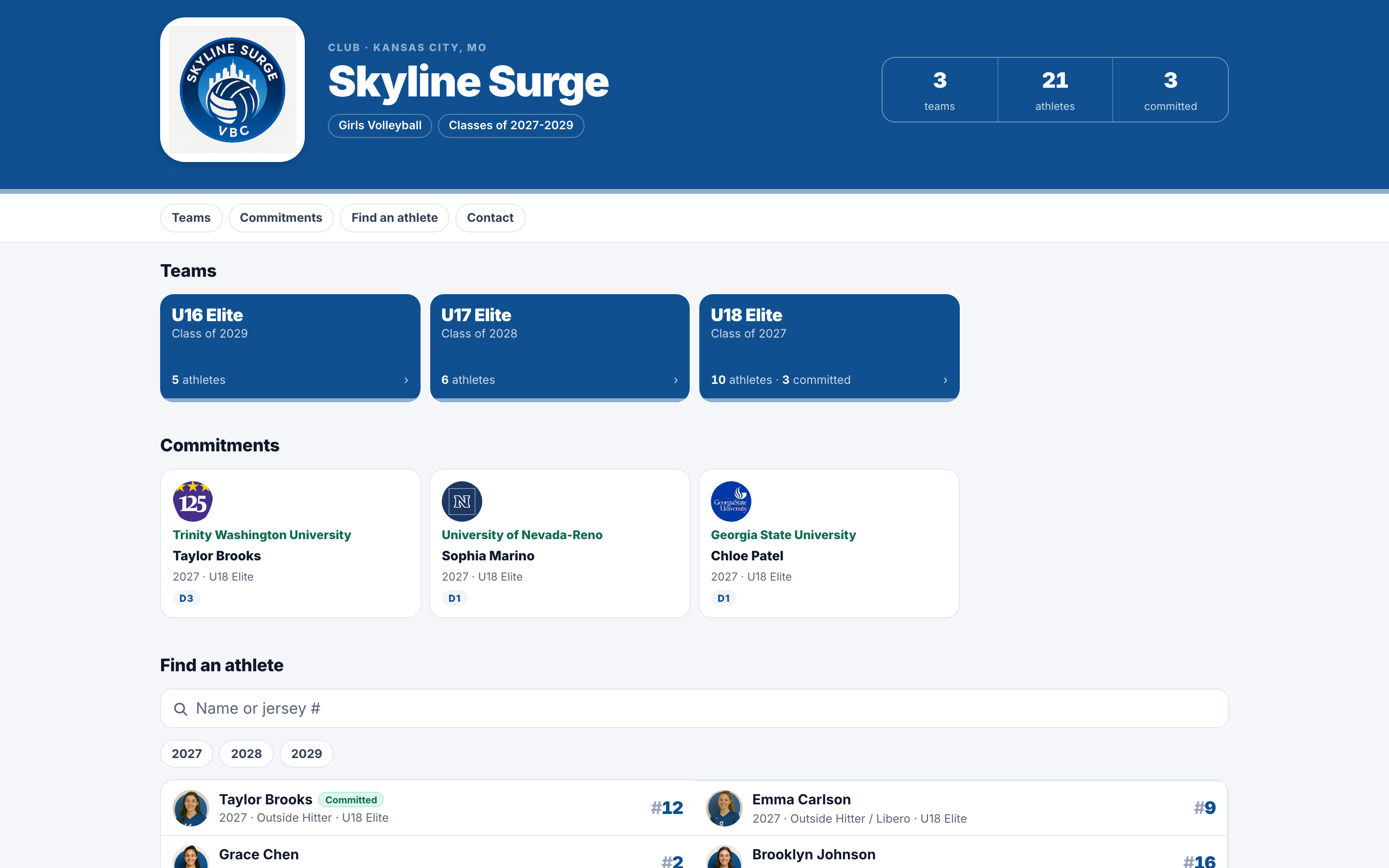
Every space gets a public organization profile: one link for your whole program that a college coach can open without logging in. It's your club profile, school profile, or business profile, depending on your account type. It brings your team profiles together under your logo and colors, so a coach who wants more than one team, or doesn't know which team to look at, starts here.
What's on it
The top of the page shows your logo, your name, your account type and location, your sports, the classes on your rosters, and a count of your teams, athletes, and commitments. Below that, shortcut chips jump straight to each section:
- Teams. A card for each team in your club colors, grouped by sport when you have more than one, with its classes and how many athletes are on it and committed. Each card opens that team's profile.
- Commitments. Your most recent college commitments, each with the college's logo, division, the athlete's name, class, and team. Tapping one opens the athlete's profile. See all opens your full commitments page when you have more than fit here.
- Find an athlete. A search across every athlete on every listed team, by name or jersey number, with sport and class filters. Results link to each athlete's recruiting profile.
- Contact. One recruiting contact, with their photo, email, phone, and one-tap Email and Text buttons. Each team's own coaches stay on that team's page.
Sections without anything to show are left off. A program with no commitments yet, for example, simply doesn't get a Commitments section.

What coaches see
Like your team profiles and team brochures, the organization profile shows what coaches need to decide who to follow, and every athlete links to their full recruiting profile. An athlete's own privacy settings control that individual profile.
Choose your recruiting contact
The Contact section shows one person, so coaches always know who to reach. Pick them under Recruiting contact in your space Settings. Until you choose, it's your first admin. Only Super Admins can open space Settings.

The same Settings page holds your logo and Club colors, which this page, your team profiles, and your team brochures all use.
Choose which teams show
Every team shows on your organization profile by default. For a team that isn't a real roster, like a position group or a prospect list you built for one coach, turn off Show on club profile (or school or business profile) on that team's Info tab. It comes off this page, but its own team page and link keep working. See Teams that aren't rosters.
Find and share the link
Anyone on your staff can open the page from Public profile in your space's menu. It opens in a new tab, so you can copy the address from there.

When the link is texted, emailed, or posted, the preview shows your logo on your club colors, not a generic image.

Good places for it:
- Your email signature and your recruiting coordinator's.
- The recruiting page of your own website, next to your website embeds.
- Your social bios.
- The first email to a coach who asks "who do you have?"
What's next
- Set up each team's page in Team profiles.
- Print a brochure for your next showcase in Team brochures & QR codes.
- Learn how spaces, teams, and Settings fit together in Spaces & teams explained.