

Your profile is what a coach sees first, so it's worth building out completely. ProductiveRecruit splits it into focused tabs. Fill each one out and everything downstream gets easier, since your templates, AI-generated emails, and public profile all pull from what's here.
What's in your profile editor
The editor is organized into three groups, plus settings:
- About You: Overview, Contact, Academics
- Your Sport: Athletics, Videos, Events, Links, Photos
- Recruiting: Offers, Commitment
- Settings: Privacy, Learn
Each tab has its own save button, so you can work through the editor over several sessions without losing progress.
Start with the Overview tab
This is your profile's front page. Fill in:
- Recruit Type — High School Recruit, College Transfer, Graduate Transfer, JUCO Transfer, or International Recruit
- Status — Searching or Committed. This field is read-only; it updates automatically once you log a commitment on the Commitment tab.
- Grad Year
- Profile Photo, with a crop tool for circle or square
- Birthday, City, State, and Country
- About me — a short bio on what makes you unique, your goals, and what you're looking for in a program
From there, move into Academics for your GPA, test scores, and eligibility numbers, and Athletics for your position, height and weight, and sport-specific stats. See Athletic profile and stats for the full field list.
Add the sections coaches actually look at
A profile with every field filled in still falls short if it's missing the parts that drive real interest:
- Videos: your highlight reel matters more than any text field on the page. See Adding & featuring videos.
- Privacy — decide what shows on your public, unlinked profile. The link you share directly with coaches (and the one added to your outgoing emails) always shows your complete profile regardless of these settings. See Privacy and visibility.
- Commitment: once you've committed, log it on the Commitment tab so your public profile and recruiting status update automatically.
Track your progress with the completion meter
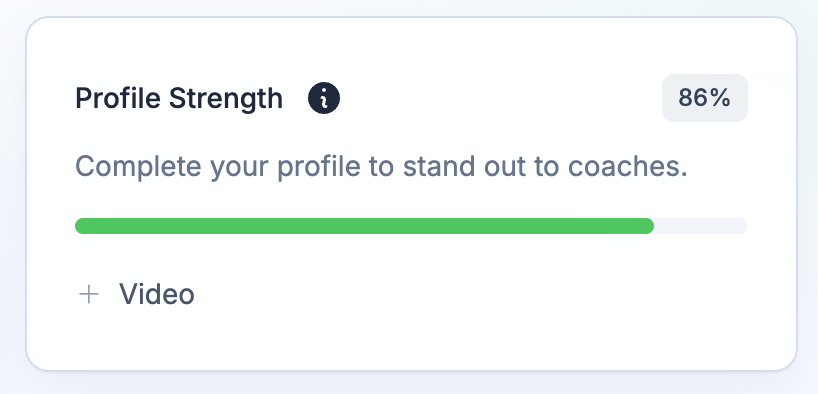
Your dashboard shows a profile-strength meter that checks seven things: Profile Photo, Basic Info (grad year, birthday, city, state), Athletic Profile (primary position), Academics (GPA), Contact Info (phone and email), Video (at least one), and Bio. Each incomplete item links straight to the tab where you can fix it, so there's no guesswork about what's left before you hit 100%.
What's next
- Add your highlight video in Adding & featuring videos.
- Control what shows on your public, unlinked profile in Privacy and visibility.
- See exactly how coaches view your profile in Your public profile.