

The Website page holds everything college coaches and families see outside the app: your logo and brand colors, your organization profile, the embeds for your own website, and every team's page. Change your colors here and you see the result right away, before anything goes live.
Find it
Click Website in the sidebar. Super Admins see it for every space, and Admins see it for the spaces they run. Coaches and Team Managers don't see it. See Staff roles & permissions.

If you work in more than one space, a picker at the top of the page chooses which one. Super Admins also get All spaces (organization) for the settings that cover all of them. With one space, there's no picker and everything is for that space.
The page has four tabs: Branding, Organization profile, Website embeds, and Team pages.
Branding
Your logo and brand colors show on your organization profile, team pages, team brochures, and website embeds. Set them once here.
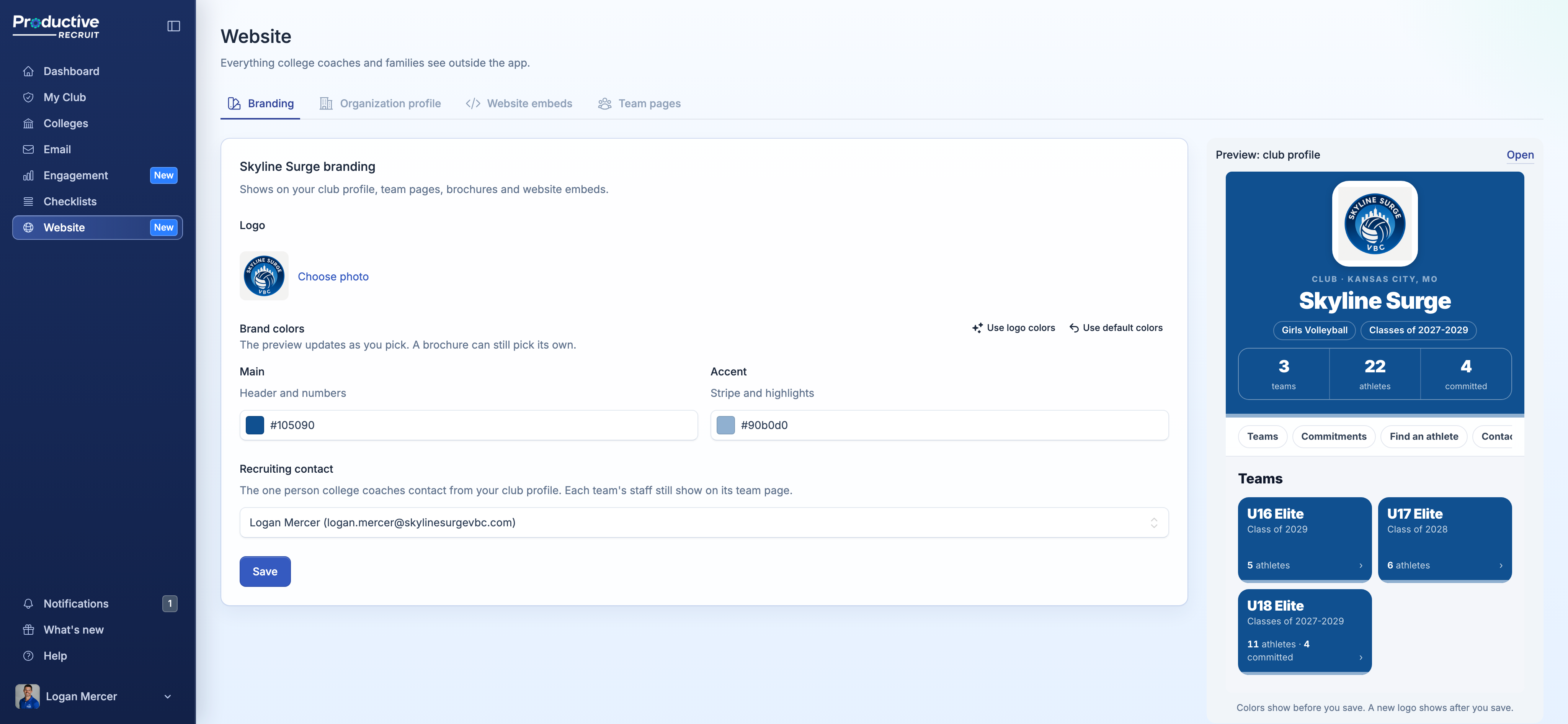
- Logo. Click Choose photo, crop it, and save. A wide logo works fine.
- Brand colors. A Main color (headers and numbers) and an Accent color (the stripe and highlights). Click Use logo colors to pull them from your logo, pick a swatch, or type your exact hex codes. The preview on the right updates as you pick, so you can try colors before you save.
- Recruiting contact. The one person college coaches contact from your organization profile. Until you choose, it's your first admin. Each team's own staff still show on its team page.
Click Save and every page and embed picks up the change. A brochure can still pick its own colors for one event.
Organization branding for several spaces
With more than one space, Super Admins can pick All spaces (organization) to set a logo and colors for the whole organization. Any space that hasn't set its own uses them, and so do embeds that cover all your spaces. A space that sets its own logo or colors keeps them. To send a space back to the organization's colors, open that space and click Use organization colors.
Organization profile
Copy or open your organization profile's link, and choose which teams show on it. Turn a team's switch off to take it off the profile, for a team that isn't a real roster like a position group or a prospect list. Its own team page and link keep working. The preview shows the profile as coaches see it.

With All spaces picked, you get a list of every space's profile link instead. Click Choose teams to open that space.
Website embeds
Build the snippets for your own website: an athlete search, team rosters, your commitments, or one all-in-one recruiting embed. Each comes in a few layouts in your brand colors, with a live preview next to the settings. See Website embeds & athlete directory.
Team pages
Every team's public page in one list, with Copy link and Open, plus how many brochures it has and the latest one. Brochures opens that team's brochures. A team turned off for your organization profile shows Hidden from profile, and its page still works.

Where things moved
Your logo, colors, and recruiting contact used to live in space Settings, and embeds lived on the Integrations page in your account menu. Both are on the Website page now. Space Settings has a button straight to it, and old Integrations links open the Website embeds tab.
What's next
- See what coaches see on your organization profile.
- Put your athletes on your own site with website embeds.
- Print a brochure for your next showcase in Team brochures & QR codes.