

Every school in ProductiveRecruit has its own program profile page: one place to see everything about that program and everything you've done with it, from admissions data to the notes you've jotted down after a call.
Get there from search or your target list
Open a profile from College Search (the arrow button tooltipped "View school profile, coaches, and more") or from a row on your target list. The page shares one tabbed layout across seven tabs: Info, Majors, Emails, Notes, Tasks, Activity, plus an Athletes tab that only org staff see, showing which of their athletes are interested in that program.

The header card shows the program name, location, school type and size, and (once you've added the school to your target list) a clickable status badge and tag badges (an "Add tags" badge appears if you haven't tagged it yet). From there you can add or remove the school from your target list with the heart icon, email the school, add a note, add a task, or log a campus visit.
The Info tab
If your college matches are on, the header card shows your match % for this school, and the Info tab opens with a Your match section: your score, fit label, and a one-line summary of what fits. Click it to open the full breakdown, factor by factor. If the school has no score, this section tells you why (for example, it's in a division you haven't picked) and how to fix it. If your preferences aren't filled in enough for matching yet, it tells you what to add.

Below that is Program Overview: division, conference, and links to the program's recruiting questionnaire, website, and social accounts (only shown if the school has them set).
In the sports we have roster data for (soccer, volleyball, football, baseball, softball, basketball, and lacrosse), the rest of the tab splits into Athletics and Academics, with a switch at the top. The page remembers the one you picked last. In other sports, everything shows on one page.
Athletics is about the team:
- Season Record: the latest season's overall record with its win %, home, away, and conference records, and a few team stats, then past seasons as bars you can hover for the details. The latest season may still be in progress.
- Coaching Staff and Additional Contacts — names, titles, emails, and phone numbers. This section is gated to paid plans.
- Roster Outlook: how the roster looks for your position and class. See Roster Outlook below.
- Roster: the program's current roster, with each player's number, position, class, hometown, and last season's stats line (like "16 starts · 71 saves · 5 shutouts"). Tap a position or class to filter it. It shows 10 players until you click Show all.

Academics is about the school:
- School Profile: graduation rate, retention rate, student-to-faculty ratio, full-time student percentage.
- Admissions — average GPA, ACT, SAT, acceptance rate, and standardized test requirements.
- Financial: average annual cost, typical loan payment, and median earnings after graduation.
- Campus Diversity — student and faculty breakdowns by demographic group.
- Similar Programs: a grid of comparable schools. See Discovering similar schools.
Any metric a college hasn't reported shows as "Not reported" rather than a blank. Plenty of schools don't share every data point.

Coaching staff contact info and any additional contacts you've added are only visible on a paid plan. If your account doesn't qualify, you'll see a "Requires Pro" badge instead of the coach list. Check Choosing a plan for what unlocks it.
The season records, roster, and Roster Outlook are Pro features too, available during your trial and on a paid plan. On a free plan, the Info tab shows the school's academic data and program overview without them.
Roster Outlook
The Roster Outlook reads the class years on the program's roster and forecasts how many players at each position graduate before a class arrives. It's the same outlook behind the Roster needs filter in College Search, so the two always agree. Click the ⓘ next to the heading for how it works.
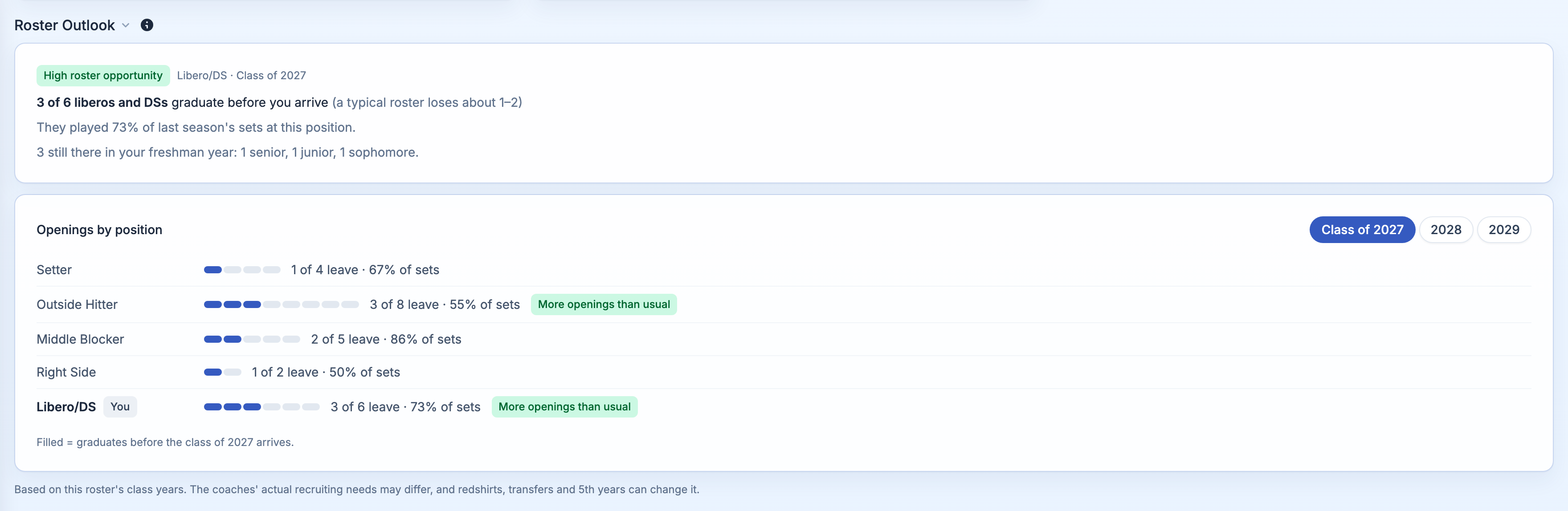
Your outlook comes first, for your position and grad year from your profile. It shows a High, Medium, or Low roster opportunity badge, then the numbers: for example, "3 of 6 liberos and DSs graduate before you arrive (a typical roster loses about 1–2)." Below that, how much of last season's playing time those players had, and who'll still be there in your freshman year, by class.
- High: at least one more player leaves than a typical roster would lose (a quarter more for big groups).
- Medium: about as many leave as usual.
- Low: at least one fewer leaves than usual.
If your profile is missing a position or grad year, this card has a button to add it. If your position is one rosters don't list (like ATH), it says there's no outlook for it.
Openings by position comes next: every position on the roster, with a bar for each player, filled in for the ones who graduate before the class you pick. Switch between the next three classes with the pills at the top; yours is selected first. Each row reads like "2 of 6 leave · 91% of sets": how many players leave, and the share of last season's playing time (minutes, sets, starts, at-bats, or innings, depending on the sport) that leaves with them. Your position is marked You, and positions losing more players than usual get a More openings than usual badge. Hover a position's name to see how its players split across classes right now.
Staff see Openings by position too, so you can check any position and class for an athlete you're advising.
A few things the outlook can't see: redshirts, 5th years, transfers, early departures, and recruits a program has already committed. It's built from class years, not the coaches' recruiting plans, so a program's actual needs may differ. For a spring sport in the fall, the outlook works from last season's roster until the new one is posted.
See Roster needs for the full explanation of the math.
The other tabs
- Majors: the school's academic majors, searchable.
- Emails: every message you've sent to this program's coaches.
- Notes: your own notes on this school, including quick call notes. You can pin one note per program to keep it at the top.
- Tasks — to-dos tied to this program, each with a due date.
- Activity — a timeline of everything that's happened with this program: emails sent, opened, and clicked; status changes; profile views; campus visits; and more. It's the fastest way to answer "what's the story with this school?"
Tags and status both live here too — click a tag badge to edit your tags, or the status badge to update where this program sits in your recruiting pipeline.
What's next
- Track a coach's engagement over time in Tracking status.
- Use tags to organize programs beyond status in Tags & prioritization.
- Find more schools like this one in Discovering similar schools.