

College Search is where you find every program worth a look: thousands of schools, filterable down to the ones that actually match your sport, location, and academic fit. Start broad, narrow it down, and add anything promising straight to your target list.
The database covers varsity programs: NCAA D1, D2, and D3, NAIA, and Junior College. College club teams (the student-run kind that compete outside the NCAA) aren't listed, so if a school shows no program in your sport, it may only field a club team. Those are still worth pursuing, just directly through the school's club sports page.
Search by name
The search bar at the top ("Search by college name") matches on the school's name or common alias as you type, so partial names work fine. Your search term is saved automatically and picks back up where you left off if you navigate away.
Filter groups
Filters are grouped into three popovers, each showing a badge count of active filters:

- Athletics — Division (NCAA D1, D2, D3, NAIA, Junior College), Conference (scoped to your sport), and Sport (only shown if you play more than one sport, or you're browsing as a non-athlete). Football searches for "NCAA D1" automatically include FBS and FCS results. See Divisions & conferences explained for how that split works.
- Location: State, Setting (City, Suburb, Town, Rural), Zip Code, and Distance From Zip Code (10, 50, 100, 250, or 500 miles, defaulting to 50).
- Academics: Major(s), Size (Small, Medium, Large by enrollment), High School GPA, Average Annual Cost, ACT Score, SAT Score, Acceptance Rate, Graduation Rate, School Type (Public, Private nonprofit, Private for-profit), and Specialized Mission (HBCU, Women only, Men only).
Every range and dropdown filter here (GPA, test scores, cost, acceptance and graduation rate) pulls from federal education data, so some schools show "Not reported" if they don't share a given number.
Set what you want in a popover, then hit Apply Filters to run the search. Opening a popover doesn't filter live. Your filters are saved and stick around across sessions until you clear them, either per-group ("Clear X Filters") or all at once.
Reading and acting on results
Results load as a paginated grid of cards, each showing the school's logo, name, location, type, size, and badges for division, conference, and sport. If nothing matches, you'll see "No colleges found" with a nudge to adjust your filters.

Each card has three buttons:
- Heart — add or remove the school from your target list. Adding one opens the "Add to List" modal so you can set a status and tags right away.
- Paper airplane — email the school directly, with the message pre-filled for that program.
- Arrow — open the school's full program profile in a new tab, including coaching staff, admissions data, and similar schools.
You control how many results show per page from the selector at the bottom of the grid.
See your match % and sort by best match
Once your college matches are on, every card in your divisions shows your match % and fit label (Strong fit, Good fit, or Reach) in its top-right corner. Results sort by Best match by default, so the programs that fit you best come first, with whatever filters you've set still applied. Switch to School name (A–Z) from the sort menu next to the filters.

Programs outside your divisions (or in a sport other than your primary one) don't get a score and sort after the ones that do. If your preferences aren't filled in enough for matching yet, a note above the results tells you what to add.
Find programs likely to need your position
In soccer, volleyball, football, baseball, softball, basketball, and lacrosse, a fourth button, Roster needs, sits next to the filter groups. Turn on its one switch, Only programs likely to need [your position] players in [your grad year], and click Apply Filters. Your results narrow to programs where at least one player at your position graduates before you arrive, based on the class years on each roster.
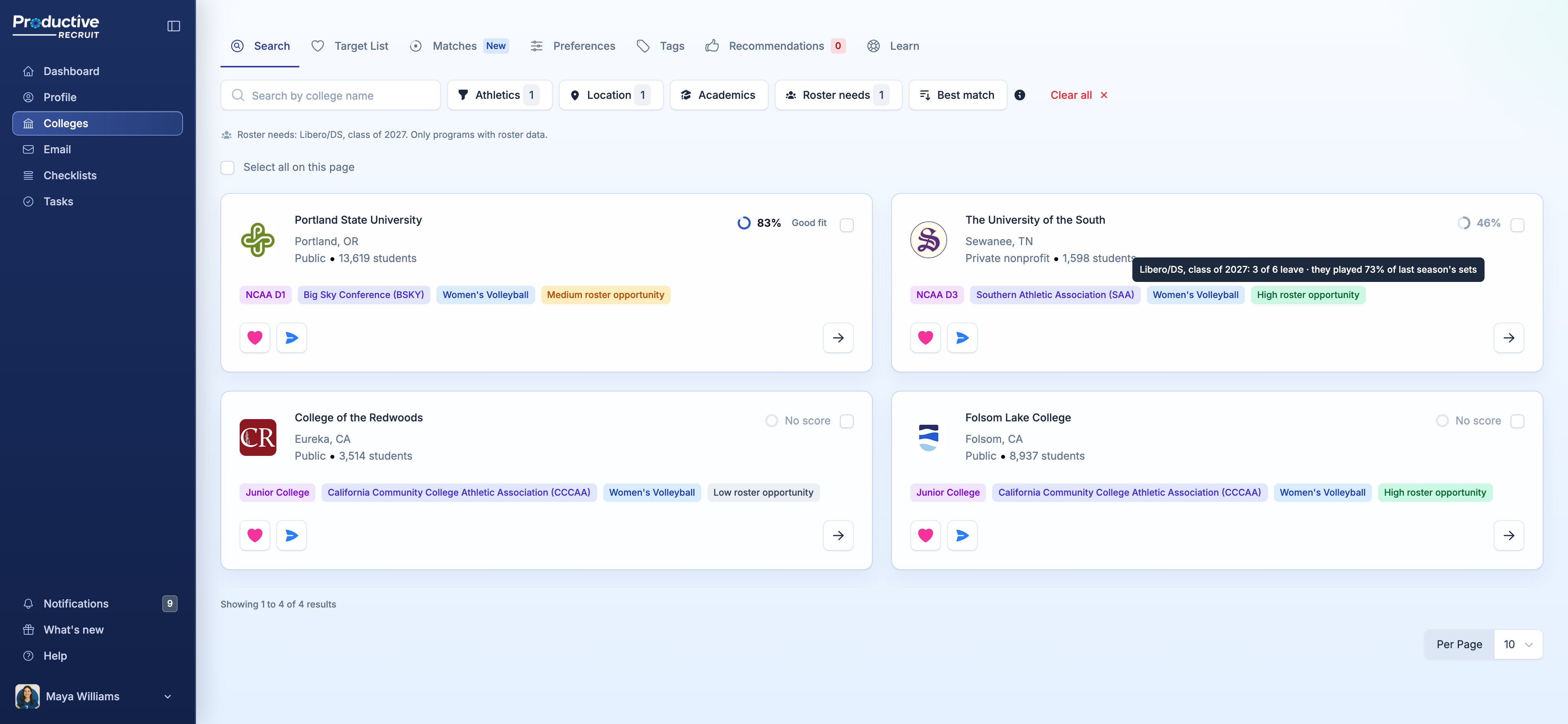
Those programs get a chip saying how strong the opening is, a green High, amber Medium, or grey Low roster opportunity, even with the switch off. Hover one for the numbers behind it, like "3 of 6 leave · they played 73% of last season's sets." Staff pick a position and class instead. See Roster needs for how the outlook works and what it can't see. Roster needs is a Pro feature, available during your trial and on a paid plan.
Add several schools at once
When a search turns up a batch of schools you want, you don't have to heart them one at a time. Every card has a checkbox in its top-right corner, and a Select all on this page checkbox sits above the grid. Tick the schools you want (selected cards get a blue outline); your selection sticks as you page through results, so you can keep picking across pages.
As soon as anything is selected, a bar appears at the bottom of the screen showing how many schools you've picked, with Clear and Add to target list. Clicking Add to target list opens a modal where you choose one status and up to three tags for the whole batch, then confirm. Nothing is added until you confirm.
A few things the modal handles for you:
- Schools already on your list are skipped, not duplicated. The modal tells you how many of your selection are already there, and the confirmation toast reports what was added.
- If you're on a plan with a target list cap, the modal shows how much room you have left and won't let you overshoot. Deselect a few schools or upgrade, then try again.
- Your selection clears once the schools are added, and each card's heart fills in to show it's now on your list.
What's next
- Add schools you like to your target list and start tracking where things stand.
- Learn how tags and prioritization help you organize a long list.
- See every program in your divisions ranked by fit in College matches.
- Find the programs likely to need your position in Roster needs.