

Your admin dashboard is the home screen for your organization account: a real-time view of how your athletes and staff are using ProductiveRecruit, plus your usage limits in one place. It's the first thing you see after logging in.
Stats at a glance
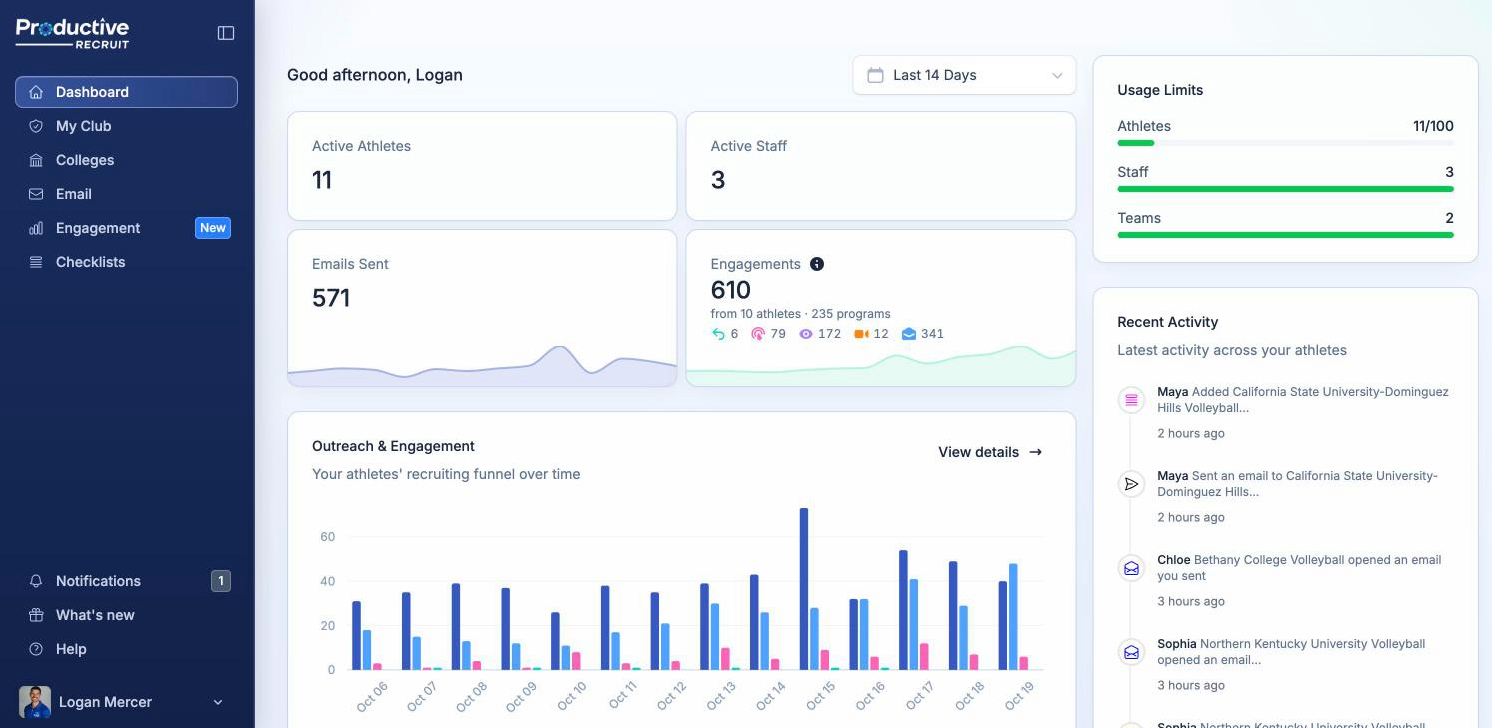
Near the top, four stat cards summarize your organization: Active Athletes, Active Staff, Emails Sent, and Engagements. A date range picker above the cards lets you switch between presets like today, the last 7 or 14 days, this month, or all time. It defaults to a shorter window for brand-new accounts and widens as your account ages.
Emails Sent and Engagements count your athletes' outreach only. Emails your staff send from their own accounts aren't included here; staff can see those under Email → Engagement.
The Engagements tile adds up every coach action on your athletes' emails in the range: opens, link clicks, profile views, video views, and replies. Under the total, you'll see how many athletes and college programs it came from, plus a chip for each kind of signal, so you can tell at a glance whether that number is mostly opens or mostly replies. Click the ⓘ on the tile for what each icon means.
Below the stat cards, the Outreach & Engagement chart plots your athletes' recruiting funnel over time, with toggleable series for Emails Sent, Opens, Clicks, and Replies. It's useful for spotting whether athletes are actually sending emails and whether coaches are responding. Click View details to open the Engagement page, which ranks the programs engaging with your athletes.
Usage limits
The Usage Limits card, visible to Super Admins and Admins, tracks your athletes, staff, teams, and (if you have more than one space) spaces against your plan's caps, each with a progress bar that shifts from green to amber to red as you approach the limit. Need more room? See Billing for how to move up a tier.

Recent activity
The Recent Activity sidebar card shows the latest activity across your athletes (think college program interactions as they happen) so you can see engagement without digging into individual profiles. It's a quick summary; for the full, filterable history see Activity feed.
Getting your team set up
New organizations also see a Get started with your organization checklist here with a couple of quick setup steps — inviting your first athletes, inviting staff, and (for most account types) creating your first team. It tracks your progress and disappears once you've completed it. If you haven't invited your coaches or directors yet, jump to Inviting staff.
Who can see what
Not everyone on your team sees the same dashboard. The Get started checklist and Usage Limits card are only visible to Super Admins and Admins, the people managing the account or a space day to day. Coaches and team managers still see the stat cards, chart, and recent activity, but scoped to what they're allowed to view (for example, a coach restricted to their own teams only sees activity from their athletes).
What's next
- Understand each role's access in Staff roles & permissions.
- See which college programs are engaging with your athletes on the Engagement page.
- Dig deeper into engagement data with Opens, clicks & views explained.