

Shared email templates let admins write one great outreach message and put it in every athlete's hands, instead of hoping each athlete writes their own from scratch. Set who can use a template once, and every athlete in scope sees it immediately.
Choose a visibility
Admins create templates from Templates → Create, either with AI or by hand, and set who it's for there. When you edit a template later, you set it under Visibility. Both offer these three options. Creating also offers a fourth, A specific athlete, and calls Private Just me:

| Visibility | What it does |
|---|---|
| Private | "Only you can see and use this template." |
| Entire Organization | "Available to all of your athletes." |
| Specific spaces | "Available to athletes in the spaces you choose." |
If your organization has only one space, Specific spaces doesn't appear as an option, since there's nothing to narrow it down to. When you do pick Specific spaces, a Spaces checkbox group appears so you can select exactly which ones get access.
Only admins can set visibility. Athletes don't get a visibility choice on their own templates. Everything an athlete creates is private to them by default.
Write a shared template with AI
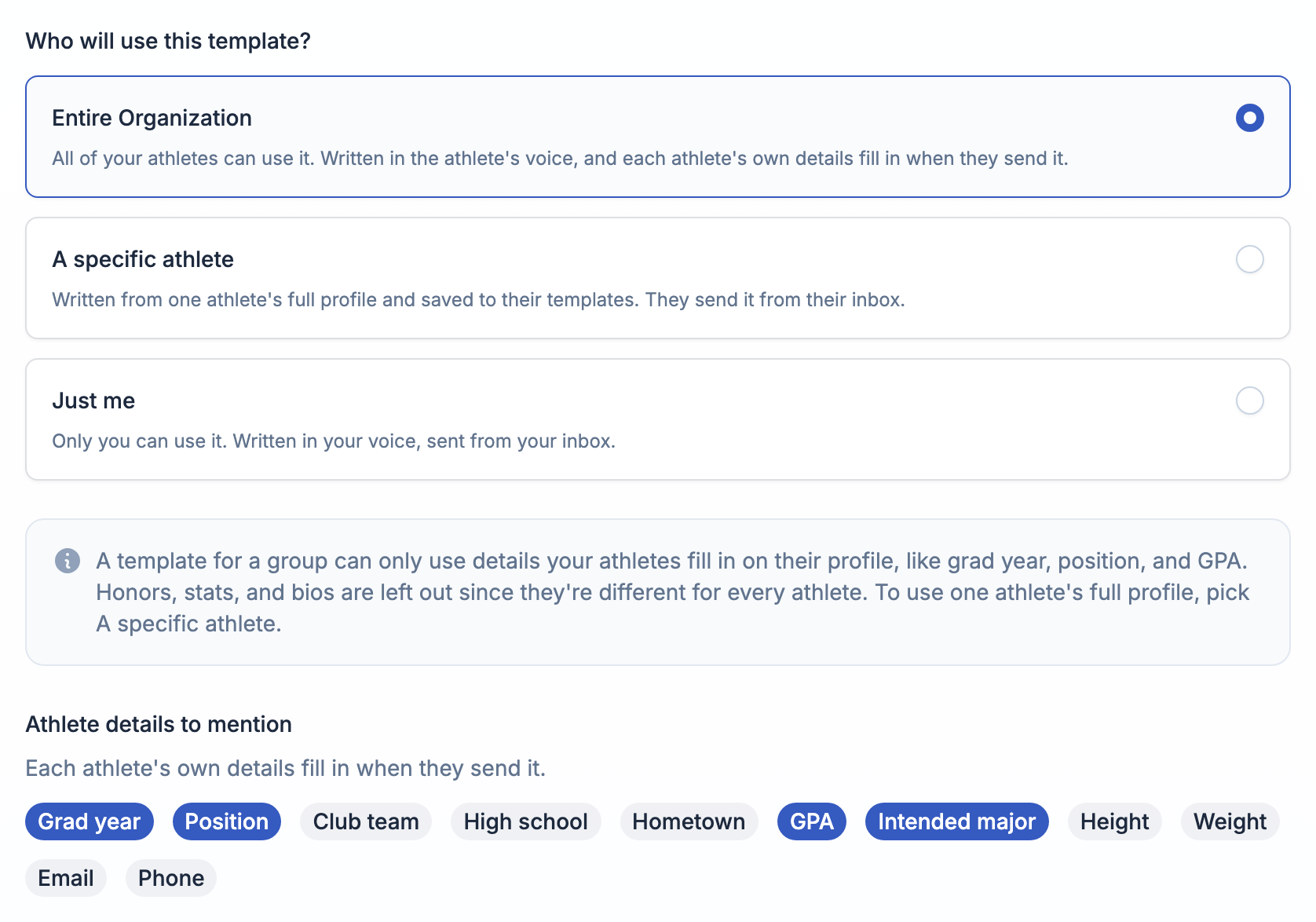
On Create with AI, you choose who the template is for before you generate it, and that changes how it's written:
-
Entire Organization or Specific spaces: the AI writes it in the athlete's voice, because each athlete sends it from their own inbox. Under Athlete details to mention, tick the details it may use (grad year, position, club team, high school, hometown, GPA, intended major, height, weight, email, phone). It only uses the ones you tick, and each athlete's own details fill in when they send it.
A group template is one message every athlete sends, so it can only use profile details that have a tag. Honors, stats, and bios are left out since they're different for every athlete. It also won't name your organization as the athlete's team: their team only shows up when you tick Club team or High school. To use one athlete's full profile, pick A specific athlete instead.
-
A specific athlete: the AI writes it for one athlete, from everything on their profile. See Write a template for one athlete.
-
Just me: the AI writes it in your voice, for you to send yourself.
Add anything the template should mention under Anything else?, like an upcoming showcase, then click Generate template. Each generation counts against your own AI allowance, not your athletes'.
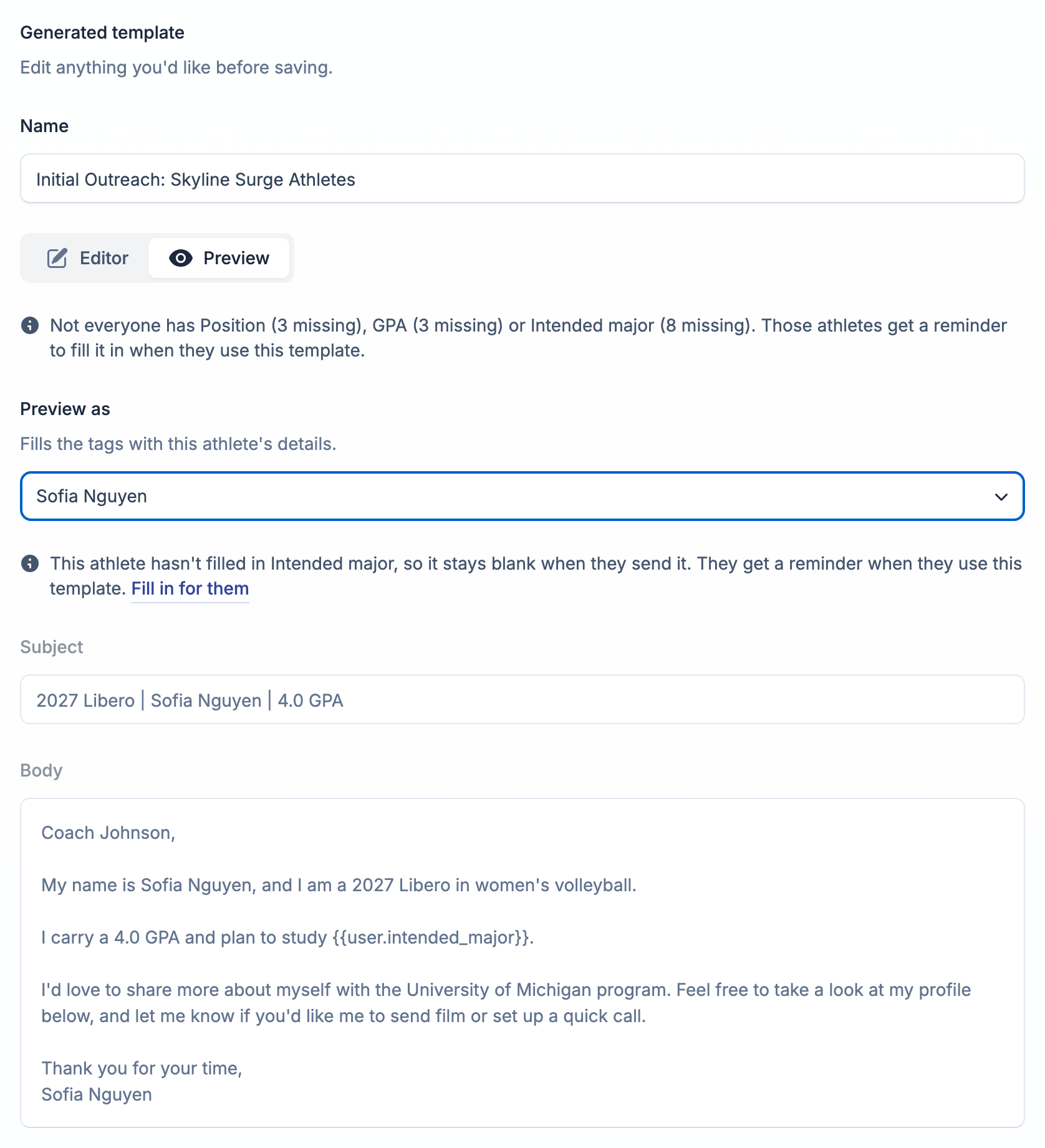
After it's generated, a short note lists any details that some of your athletes haven't filled in yet. It never stops you from saving.

On the Preview tab, Preview as fills the tags with any one athlete's details so you can see exactly what they'd send, and notes any details that athlete hasn't filled in. Click Fill in for them to add those details yourself. It opens a short form with just the fields that template needs and saves them to the athlete's profile, without leaving the page.

Coaches and team managers can use the AI generator too. Their templates are written for them to send, and coaches can also write one for an athlete.
Write a template for one athlete
When you work closely with a few athletes, the best email is the one written from everything on their profile, not just the details every athlete shares. Pick A specific athlete on Create with AI to write one without logging in as them.
- Choose the athlete. The list shows the athletes you manage: admins and coaches see the athletes in their spaces (a coach limited to their teams sees only those athletes), and super admins see everyone in the organization.
- Check What we know about them. It's the same checklist athletes see when they write their own. Click Fill in for them to add any missing details to their profile.
- Optionally pick one of their highlight videos to link in the email.
- Add anything else it should mention, then click Generate template.
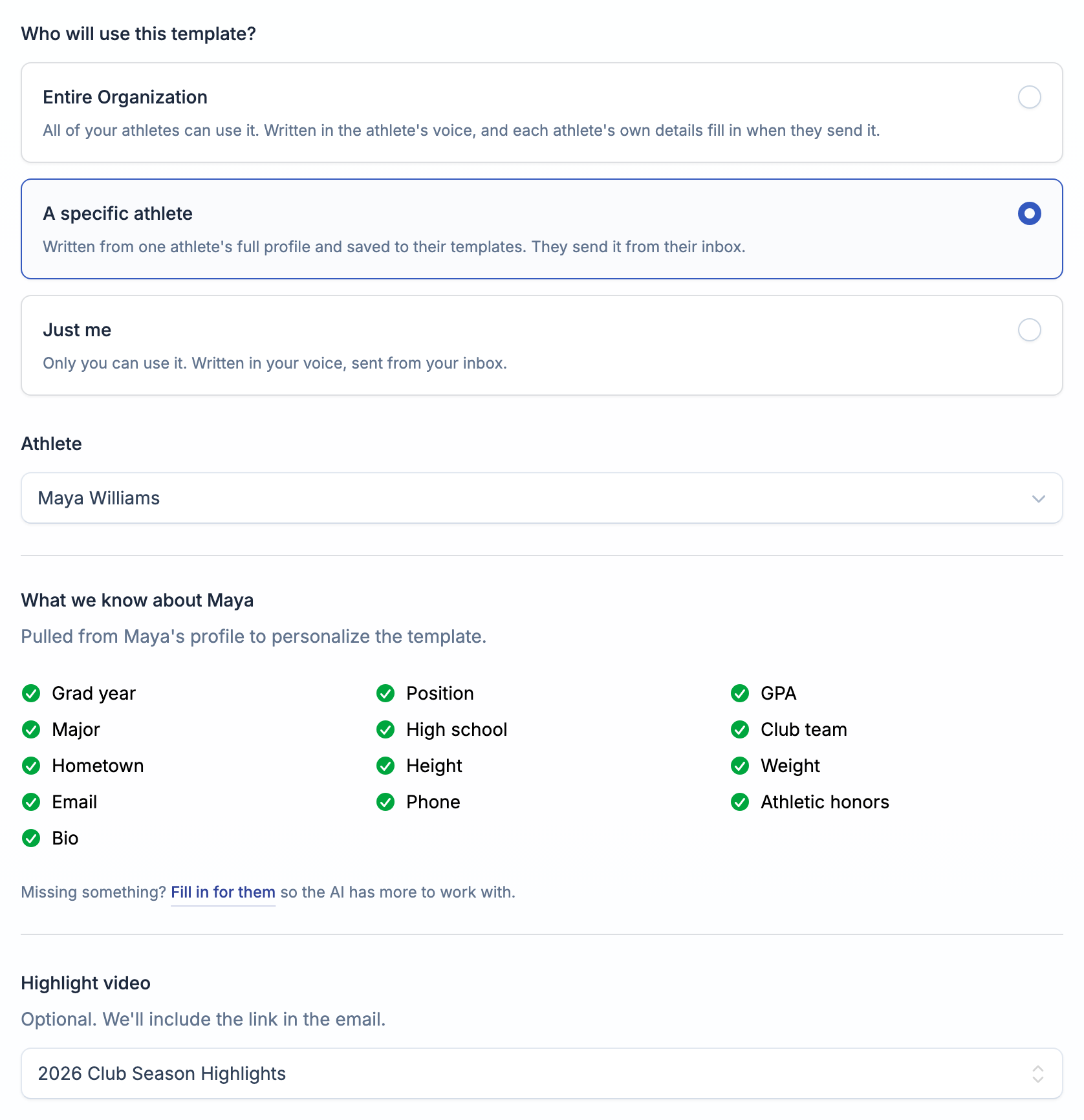
The AI writes it in the athlete's voice, using their honors, stats, bio, and the rest of their profile, just like the template they'd get on their own. Preview shows it with their details and their email signature. Each generation counts against your own AI allowance, not theirs.

When you save it, the template goes to the athlete's templates, private to them. They send it from their own inbox like any other template. Nobody else in the organization sees it.
- The athlete sees it with a From badge naming you.
- You see it in your own list with a For badge naming the athlete, so you can find it later.
- The athlete, you, and super admins on the account can edit or delete it. You keep access only while you still manage that athlete.
The athlete doesn't get a notification. Let them know it's there.
What it looks like once shared
The template list shows a badge on every template so it's obvious what's shared and what isn't:

- Templates someone else created for you appear with a Shared badge.
- A template an admin wrote for you shows From and their name. The admin sees it as For and your name.
- Your own templates show their current scope: Private, Entire Organization, or a space count like "2 spaces."
Staff can narrow the list with the filters above it: who it's for (Just me, Shared with athletes, Written for an athlete, Shared with me), space if you're in more than one, and purpose. Search matches the template name or the athlete it was written for. Super admins also see the templates other staff wrote for their athletes, so they can find and edit them.
Sharing isn't a copy. It's live. The moment you add or remove a space from a template's visibility, every athlete in that space sees the change reflected in their own template list right away. There's no separate "push" step.
Only the original creator (or a super admin on the account) can edit or delete a shared template. An athlete who has a template shared into their space can use it, but can't delete it.
Variables still work the same way
Shared templates use the same {{variable}} tags as any other template ({{user.first_name}}, {{coach.last_name}}, {{college.name}}, and the rest), so each athlete's copy still personalizes automatically. See Templates & variables for the full tag list.
If an athlete hasn't filled in a detail the template uses, like their GPA, that spot is left blank in the email rather than sent as a raw tag. When they pick the template, a note under the editor tells them what's missing, with a link to update their profile.
One nuance for Private admin-authored templates: because you're the one drafting it (not the athlete), the editor only offers tags that resolve for you — coach, college, organization, and contact-info tags. Athlete-specific stat tags like grad year or GPA are hidden in that mode, since they'd have nothing to pull from until an athlete actually owns the send.
Attachments
A template can carry one file attachment — a PDF, PNG, JPG, GIF, or WEBP, up to 7MB. It's included automatically with every email sent from that template, shared or not.
Template limits
Template caps depend on your plan, not on sharing. Legacy free accounts have a capped number of templates; Pro organizations get unlimited templates. If you're near your limit, you'll see an upgrade prompt on the template list pointing to your plan.
What's next
- Set up spaces and teams so you know exactly who a "specific spaces" template will reach.
- Review staff roles & permissions to confirm who on your team can create and edit templates.
- See what the AI template generator will and won't write.