

Your athletes send a lot of emails. The Engagement page answers the question that comes next: which college programs are actually paying attention to them? It ranks every program that engaged with your athletes' outreach by how many of your athletes it reached, and lets you open any program to see exactly which athletes those were.
Find it under Engagement in the sidebar, or click View details on the Outreach & Engagement chart on your admin dashboard.
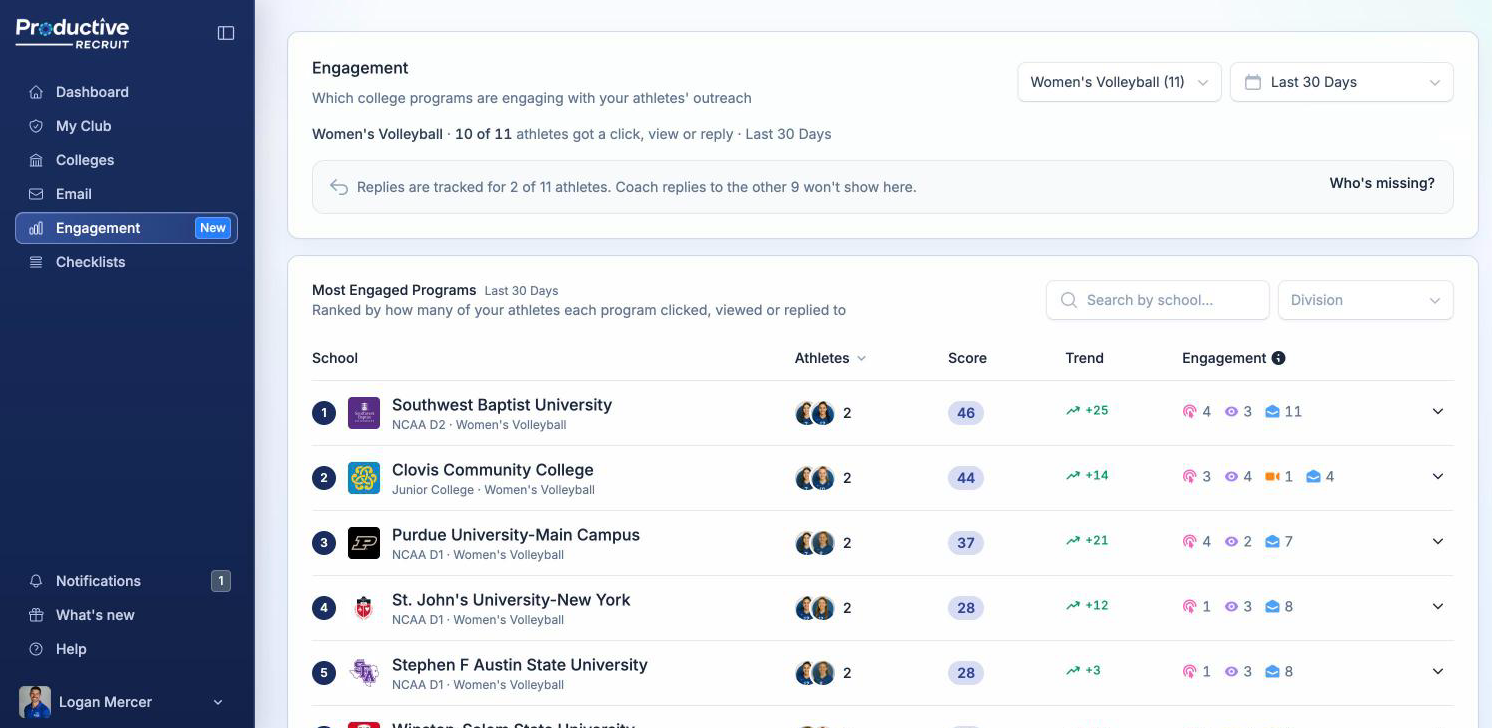
Choosing what you're looking at
The filters at the top of the page set the scope for everything below them:
- Club: organizations made up of several clubs can look at every club they have access to, or pick one.
- Sport: if your athletes play more than one sport, pick one. The page starts on the sport with the most athletes, and each option shows how many athletes play it.
- Date range: the last 30 days by default, with presets from today through all time.
Under the filters, a single line tells you how far your athletes' outreach is getting, for example 18 of 24 athletes got a click, view or reply · Last 30 days. The 24 is every athlete who sent an email or heard from a coach in the period. The 18 is how many of them got more than an open.
Reading the table
Most Engaged Programs lists every program that engaged with at least one of your athletes in the period. Each row shows:
- School: the program's name, division, and sport. Click it to open the program's Athletes tab, which lists all of your athletes interested in that school.
- Athletes: how many of your athletes this program clicked, viewed, or replied to, with their photos. Underneath, you'll see how many of those athletes got a reply, and how many more only had their email opened (for example, 2 replied · +3 opened).
- Score: the program's total engagement score across all of your athletes. It's the same score your athletes see on their own Engagement page, added up.
- Trend: how the score compares to the previous period of the same length. There's no trend for the All time range.
- Engagement: an icon chip for each kind of signal behind the score: replies, clicks, profile views, video views, and opens. Hover a chip to name it, or click the ⓘ beside the column header for what each icon means and what it adds to the score.
By default the table is sorted by Athletes, so the programs looking at the most of your athletes come first. Click Score to put the most engaged programs on top instead, or Trend to surface the programs heating up fastest.
Above the table, a search box and a division filter help you find a specific school.
Why opens don't count toward Athletes
The Athletes column counts a click, a profile or video view, or a reply, but not an open. Opens are the weakest signal: email apps and security scanners can trigger them without a coach ever reading the email. A program that only opened your athletes' emails still shows up in the table and still earns a point per open in its score, but it won't outrank a program that clicked through to look at your athletes.
Seeing which athletes a program engaged with
Click a row's athlete photos, or the arrow at the end of the row, to open it up. You'll see each athlete that program engaged with, with their own signal chips and score. The athletes' scores add up to the program's score.
Click an athlete's name to open their profile in your organization.
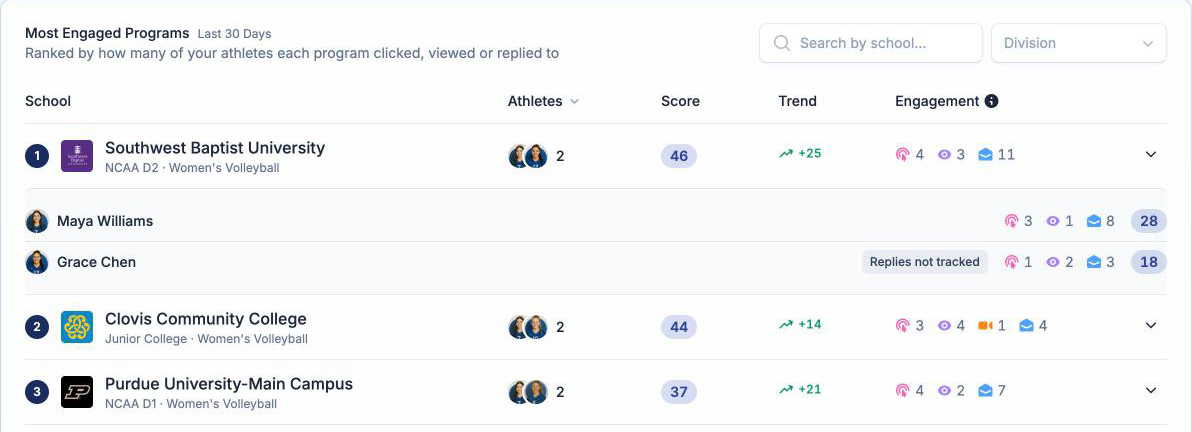
When replies aren't tracked
Replies only count for athletes who've turned on reply tracking. If some of your athletes haven't, a note above the table says so, for example Replies are tracked for 15 of 24 athletes. Click Who's missing? to see who they are. Athletes can turn it on from their Email settings.
When you open up a program, athletes without reply tracking are marked Replies not tracked, so a missing reply there doesn't necessarily mean the coach didn't write back.
Who can see what
The Engagement page is available to Super Admins, Admins, and Coaches, and it uses the same scope as the admin dashboard:
- Super Admins see every athlete in the account.
- Admins see the athletes in their spaces.
- Coaches see the athletes in their space. A coach restricted to their own teams only sees their teams' athletes, and the page says Your teams so it's clear the numbers are a slice of the organization.
Only athletes are counted. Emails your staff send from their own accounts don't appear here; staff can see their own outreach under Email → Engagement.
What to do with it
- Share the top of the list with your athletes and families. A program engaging with several of your athletes is paying attention to your organization, not just one player.
- Open a program before a showcase or a call with a coach. You'll know which of your athletes they've already looked at and who they've replied to.
- Nudge the athletes on the Who's missing? list. Turning on reply tracking takes a minute, and their replies start counting here right away.
- Widen the date range if the table looks thin. Engagement is sparse; switching to the last 3 months or All time usually surfaces more.
Related
- The admin dashboard: the Engagements tile and the Outreach & Engagement chart
- Engagement score & most engaged programs: how the score works, from an athlete's point of view
- Opens, clicks & views explained: exactly what counts as each signal
- Replies & email threads: turning on reply tracking